
How to Connect Google Search Console to Claude (Step by Step)
Connect Google Search Console to Claude in a few minutes, with no code. Steps for Claude.ai and Claude Code, plus the first 5 questions to ask.
Blog · October 20, 2026
TL;DR: Add a Search Console MCP server to Claude as a custom connector, then sign in with Google. In Claude.ai that is Customize, Connectors, “Add custom connector” with the URL https://rankvisit.com/mcp. In Claude Code it is one claude mcp add command. After that you ask questions in plain words and Claude answers with your live Search Console data.
To connect Google Search Console to Claude, you add an MCP server, which Claude calls a connector. In Claude, open Connectors, add a custom connector with the server’s URL, and sign in with Google. After that you can ask “which queries are on page 2?” and Claude answers with your live Search Console numbers. It takes a few minutes and needs no code.
This guide uses Rankvisit, a hosted and read-only Google Search Console MCP server. You need three things: a Google account with access to Google Search Console, a Claude account, and a Rankvisit account (it starts with 10 free questions, no credit card).
Step by step: Claude.ai (web and desktop)
These steps work in Claude on the web and in the Claude desktop app. The connector you add is saved to your Claude account.
1. Create a Rankvisit account
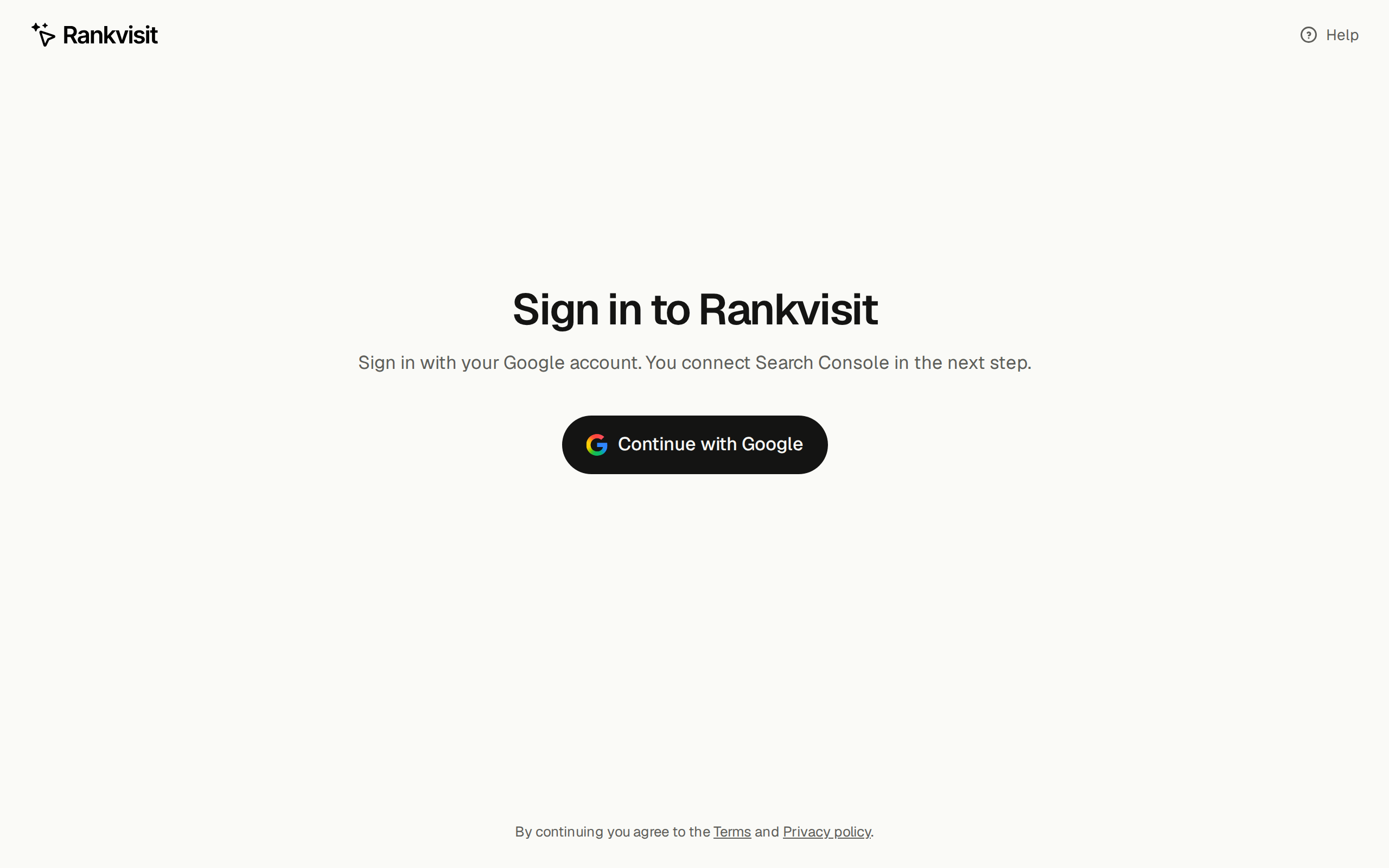
Go to rankvisit.com/sign-in and click Continue with Google.
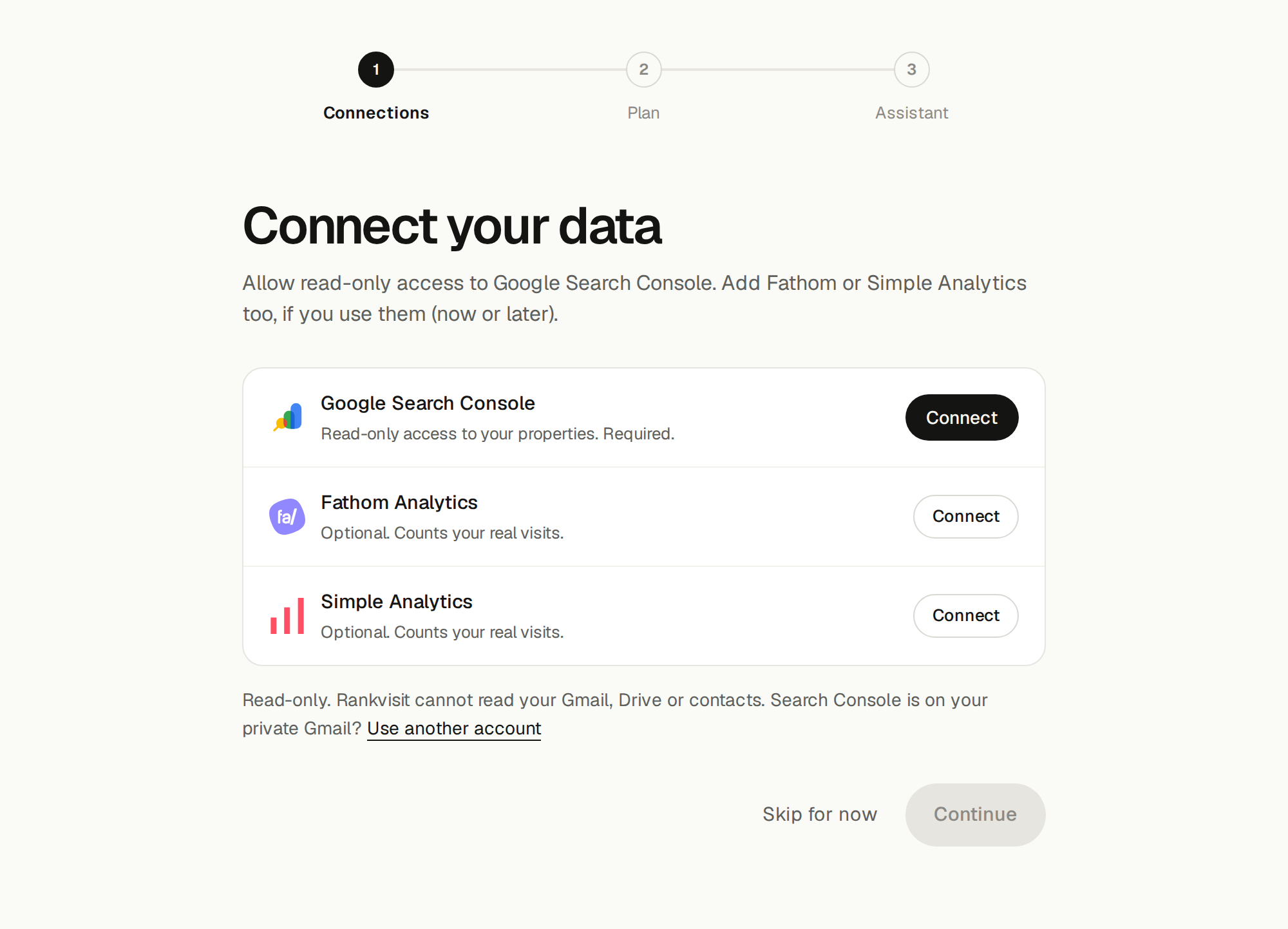
On the next screen, Connect your data, click Connect next to Google Search Console and allow read-only access. Then click Continue. Fathom Analytics and Simple Analytics are optional; you can add them later.
On the plan screen you can click Start free to use your free questions first. You can choose a plan later.
The last screen, Add Rankvisit to your assistant, shows the address you need: https://rankvisit.com/mcp.
Why this comes first: Claude only gets access to what you allowed here. If Rankvisit cannot see a Search Console property, Claude cannot either.
2. Open Connectors in Claude
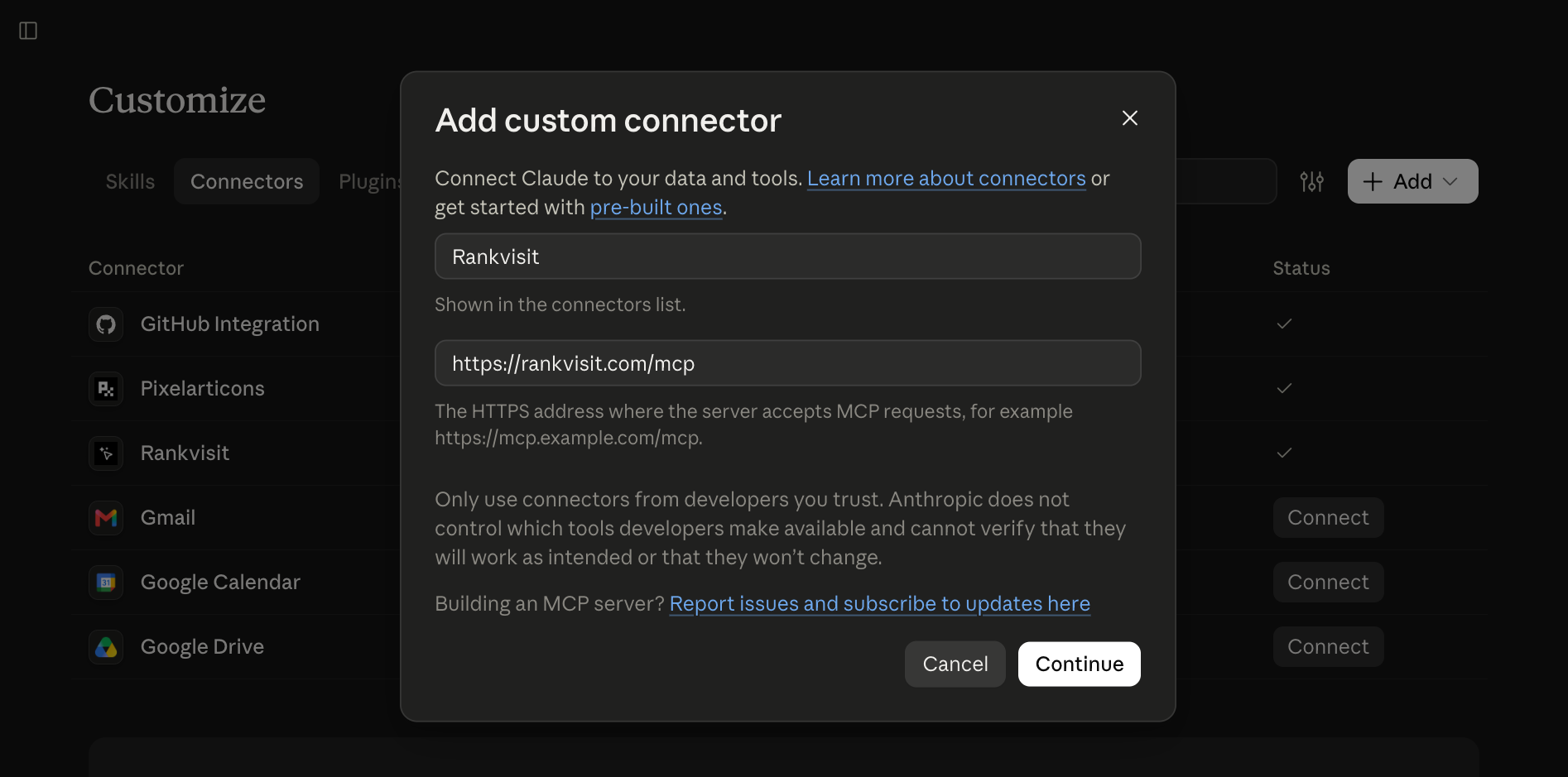
In Claude, go to Customize, then Connectors. Click + Add, then Add custom connector. These menu names come from Anthropic’s guide to custom connectors. Older versions of Claude showed the same page under Settings, then Connectors.
On a Team or Enterprise plan, an owner adds the connector once in Organization settings, then Connectors. Each member then opens Customize, then Connectors, and clicks Connect.
3. Add Rankvisit as a custom connector
Type Rankvisit as the name. Paste https://rankvisit.com/mcp as the server URL and click Continue.
Claude then shows the sign-in settings it found for the server. Keep them as they are and click Add.
4. Connect and sign in with Google
Click Connect next to Rankvisit. A browser window opens. Sign in with the same Google account you used in step 1, then click Allow. The window closes and Rankvisit shows as connected.
5. Ask your first question
Start a new chat. Click the + button at the bottom left, open Connectors, and make sure Rankvisit is turned on for this chat. Then ask:
Which Search Console properties can you see?
Claude calls Rankvisit and lists your sites. Now ask a real question and name the site and the time period, for example: “What are the top 20 queries for example.com in the last 28 days, with CTR and position?”
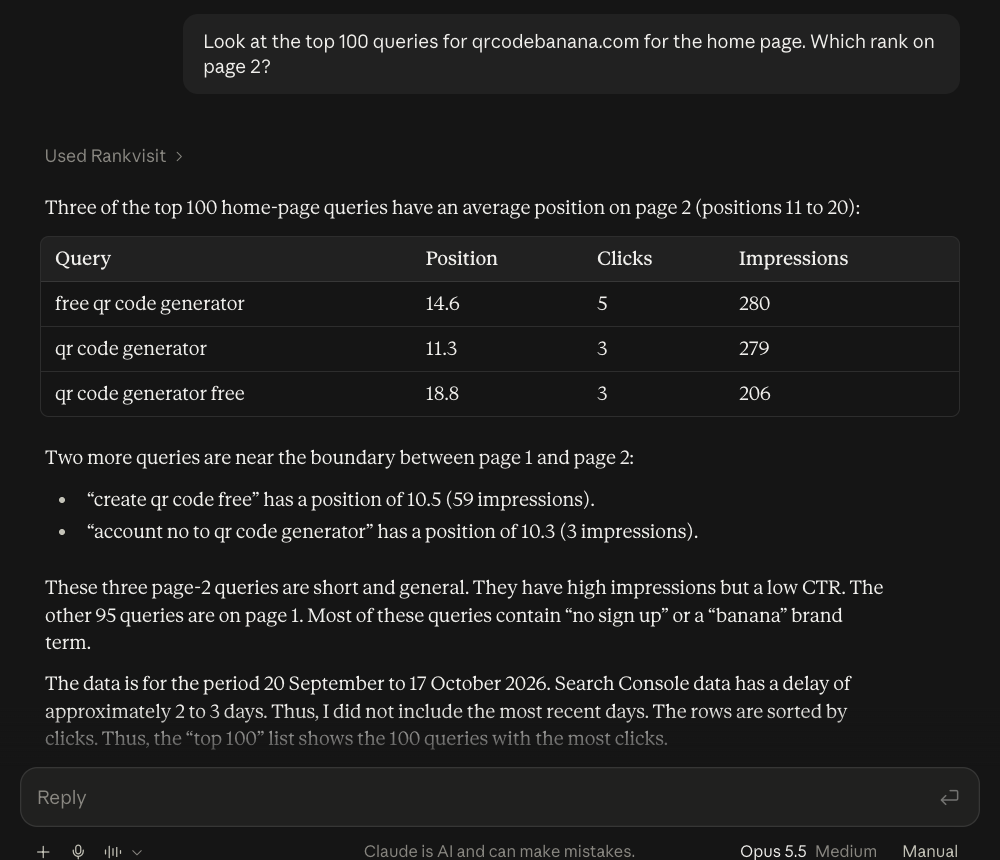
Here is a real answer in Claude.ai for qrcodebanana.com, one of our own sites. We asked which of the top 100 queries for the home page rank on page 2. Claude used Rankvisit once and answered with a table:
Step by step: Claude Code
In Claude Code you connect Search Console with two commands in your terminal. The quickest way is to let Claude Code do it. Paste this into a Claude Code session:
Read https://rankvisit.com/INSTALL.md and connect Rankvisit.
Claude Code reads the setup file, adds the server and starts the Google sign-in. You only finish the sign-in in your browser.
To do it yourself, run these two commands:
claude mcp add --transport http --scope user rankvisit https://rankvisit.com/mcp
claude mcp login rankvisit
The first command adds Rankvisit for all your projects (--scope user). The second opens the browser, where you sign in with Google and click Allow. You can also run /mcp inside a session to sign in. Both are described in the Claude Code MCP docs.
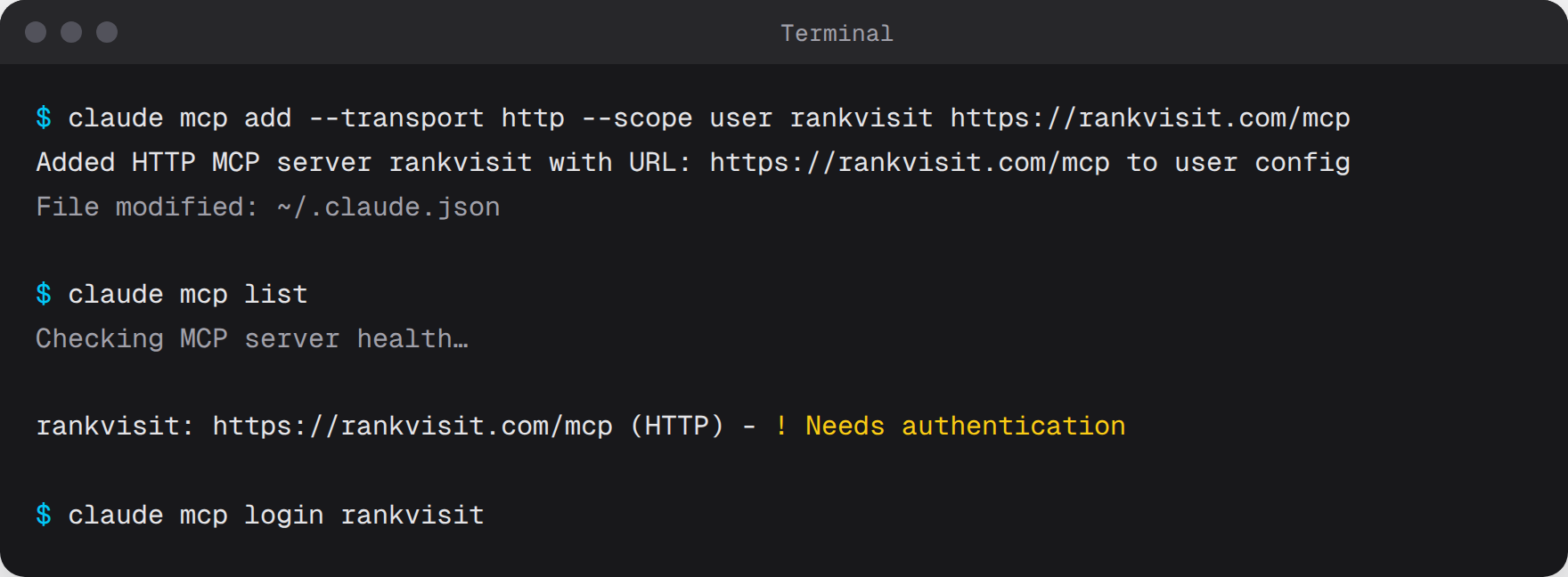
Before the sign-in, claude mcp list shows Rankvisit as Needs authentication. That is expected. Run claude mcp login rankvisit to fix it.
To check that it worked, run claude mcp get rankvisit.
First 5 questions to ask
Name the site and the period in each question. That helps Claude pick the right property and dates.
Here is a real answer in Claude Code for one of our own sites, pixelarticons.com. Claude finds the property, runs one Search Console query and answers with a table and a tip. The replay is sped up; the real answer took about 25 seconds.
- “Look at the top 100 queries for example.com/blog in the last 28 days. Which of them rank on page 2?” Claude returns the queries with an average position between about 11 and 20, with clicks and impressions. These are often the easiest pages to move up. Name a page or a folder and a number of queries: then Claude loads less data and answers faster.
- “Which pages get many Google impressions but few clicks?” You get pages with high impressions and a low CTR. Check their titles and meta descriptions first.
- “Which pages lost Google clicks this month compared to last month?” Claude compares two periods and lists pages with clicks before, clicks now and the change.
- “What are the top 20 queries for example.com in the last 28 days, with CTR and position?” A plain table with query, clicks, impressions, CTR and average position.
- “Compare Google clicks and Simple Analytics visitors for my blog pages.” This one needs Fathom or Simple Analytics (see the next section). Claude matches each page’s Google clicks with its real visits, so you can see where search traffic does or does not turn into visits.
The answers use your live numbers, so they change from site to site. Want to check a CTR by hand? Use the free CTR calculator.
Add Fathom or Simple Analytics (optional)
If you use Fathom Analytics or Simple Analytics, you can add it so Claude sees real visits next to Google clicks. Open the Rankvisit dashboard, go to Connections, and paste your API key once.
Then reconnect Rankvisit in Claude. Claude loads the list of tools when it connects, so the new analytics tools only show up after a reconnect.
Troubleshooting
Claude does not show the Fathom or Simple Analytics tools. Reconnect Rankvisit in Claude after you add the analytics tool.
Claude reports “free_calls_used_up”. Your 10 free questions are used up. Choose a plan on the pricing page, then ask again. If Claude reports “payment_failed”, update your payment method in the Rankvisit dashboard.
Claude reports “source_not_connected”. The question needs a connection you have not added yet. Open the dashboard and add it under Connections.
Claude asks you to sign in again. This is expected after you removed Claude in the Rankvisit dashboard, or after a long time without use. Sign in with Google and click Allow.
Claude does not use Rankvisit at all. Check that the connector is turned on for this chat (the + button, then Connectors). It also helps to say “Search Console” in your question.
The Rankvisit docs list all tools and more fixes.
Is it safe?
Rankvisit only reads your data. It cannot change anything in Search Console, and it does not store copies of your search or analytics data. Every answer reads fresh data from Google.
Claude can only see properties that your own Google account can access. You can remove Claude from Rankvisit in the dashboard at any time, and you can remove the connector in Claude under Connectors.
Not ready to connect an assistant? The free Search Console analyzer finds low-CTR pages and page 2 queries from a Search Console export, right in your browser.
Using ChatGPT instead?
ChatGPT supports custom connectors too, with a different menu. The steps are in the Rankvisit setup docs for ChatGPT.
Next step
Create your Rankvisit account, add the connector in Claude, and ask your first question about page 2 queries. The whole setup takes a few minutes.
FAQ
Can I give Claude access to Google Search Console?
Yes. Claude does not read Search Console on its own, but you can add an MCP server (Claude calls it a custom connector) that reads your Search Console data. Rankvisit is one such server. You add its URL in Claude, sign in with Google, and Claude can then answer questions with your live numbers.
Do I need to write code to connect Search Console to Claude?
No. In Claude.ai you paste one URL into the "Add custom connector" dialog. In Claude Code you run two commands, or you ask Claude Code to read the setup file and do it for you.
Can Claude change anything in my Search Console?
Not through Rankvisit. All Rankvisit tools are read-only. They read clicks, impressions, CTR and position. They never change settings, sitemaps or anything else in Search Console.
Does it work with the free Claude plan?
Yes. Anthropic says custom connectors work on the Free, Pro, Max, Team and Enterprise plans, but Free users can add only one custom connector. Check Anthropic's help center for the current limits.
How old is the data?
Search Console data is about 2 to 3 days behind. That delay comes from Google, not from Rankvisit. The most recent days can also be incomplete.