
How to Add an MCP Server to Claude Code (Remote + Local)
Add an MCP server to Claude Code with one command. Pick the right scope, sign in with /mcp, list or remove servers, and fix "Failed to connect".
Blog · November 16, 2026
TL;DR: One command adds a remote MCP server to Claude Code, and /mcp signs you in. Use --scope user to get the server in every project. Below: the steps, the three scopes, local servers, the config file, and six fixes for “Failed to connect”.
To add a remote MCP server to Claude Code, run claude mcp add --transport http <name> <url> in your terminal. Add --scope user if you want it in every project. Then start Claude Code, type /mcp, and sign in if the server asks you to. Run claude mcp list to check that it is connected.
claude mcp add --transport http --scope user rankvisit https://rankvisit.com/mcp
That is the whole setup for most servers. All commands are from the official Claude Code MCP docs, checked on 2026-11-16 with Claude Code 2.1.325. New to MCP? Read what an MCP server is first.
How to add an MCP server to Claude Code
A remote server lives on the internet and has a URL. This is the most common kind, and the docs call HTTP the recommended transport for it. We use Rankvisit as the example, because it is our own server. Swap in the name and URL of the server you want.
1. Run claude mcp add
Open a terminal (not a Claude Code session) and run:
claude mcp add --transport http --scope user rankvisit https://rankvisit.com/mcp
rankvisit is the name you pick. It can only contain letters, numbers, hyphens and underscores. The URL must be the server’s MCP endpoint, not its home page. Claude Code confirms with a line like this:
Added HTTP MCP server rankvisit with URL: https://rankvisit.com/mcp to user config
2. Choose a scope
The --scope flag decides where the server works. Leave it out and you get local, which means only the folder you are in right now. Use user for a server you want everywhere, like a Search Console server. The next section explains all three.
3. Sign in with /mcp
Start Claude Code with claude and type /mcp. Pick the server and follow the steps in your browser to log in. If the browser does not open, copy the URL that Claude Code shows and open it yourself.
You can also sign in straight from the terminal with claude mcp login rankvisit. That is handy over SSH, because it prints the URL when there is no browser.
4. Check that it works
Run claude mcp list. Here is the real output right after step 1, before signing in:
Checking MCP server health…

rankvisit: https://rankvisit.com/mcp (HTTP) - ! Needs authentication
After you sign in, the status changes to ✔ Connected. Now ask Claude Code a question that needs the server, and it calls the server’s tools.
Claude Code MCP config: pick a scope
Claude Code has three scopes. They control which projects load the server and whether your team gets it too. This table is from the scopes section of the docs:
| Scope | Loads in | Shared with team | Stored in |
|---|---|---|---|
local (default) |
Current project only | No | ~/.claude.json |
project |
Current project only | Yes, via git | .mcp.json in the project root |
user |
All your projects | No | ~/.claude.json |
Which one to use:
- user for tools you want everywhere, such as Search Console or a docs server.
- project for servers the whole team needs in one repo. Claude Code asks each person to approve a project server before it uses it.
- local for a test or a server with private keys you only need in one folder.
If the same name exists in more than one scope, local wins over project, and project wins over user.
Edit the config by hand (.mcp.json)
You rarely need to edit a file. claude mcp add writes it for you. But it helps to know what it looks like, for example when you review a .mcp.json in a pull request. Here is the real file after adding Rankvisit with --scope project:
{
  "mcpServers": {
    "rankvisit": {
      "type": "http",
      "url": "https://rankvisit.com/mcp"
    }
  }
}
Keep the "type" line. The docs say an entry with a url but no type is read as a local server and skipped. Servers with local or user scope go into ~/.claude.json with the same fields.
If a server’s docs give you a JSON block, you can paste it in with claude mcp add-json <name> '<json>'. Check the result with claude mcp get <name>.
Add a local (stdio) MCP server
A local server runs as a program on your computer. You add it with two dashes. Claude Code’s own options go before --, and the command that starts the server goes after it:
claude mcp add --transport stdio myserver -- npx -y some-mcp-server
Everything after -- is passed to the server untouched. If the server needs a key, add --env KEY=value before the name. Keep at least one other option, such as --transport stdio, between --env and the name, or Claude Code reads the name as another key.
List, check and remove MCP servers
Three commands cover almost everything:
claude mcp list            # all servers and their status
claude mcp get rankvisit   # details for one server
claude mcp remove rankvisit
Here is the real output of claude mcp get for the server from step 1:
rankvisit:
  Scope: User config (available in all your projects)
  Status: ! Needs authentication
  Type: http
  URL: https://rankvisit.com/mcp
If the same name exists in more than one scope, add the scope to remove the right one, for example claude mcp remove rankvisit --scope user. Removing a server deletes the sign-in Claude Code stored. To also revoke it at the service, run claude mcp logout <name> before you remove it.
Inside a session, /mcp shows the same servers with their tool counts. You can sign in, reconnect or turn a server off there without removing it.
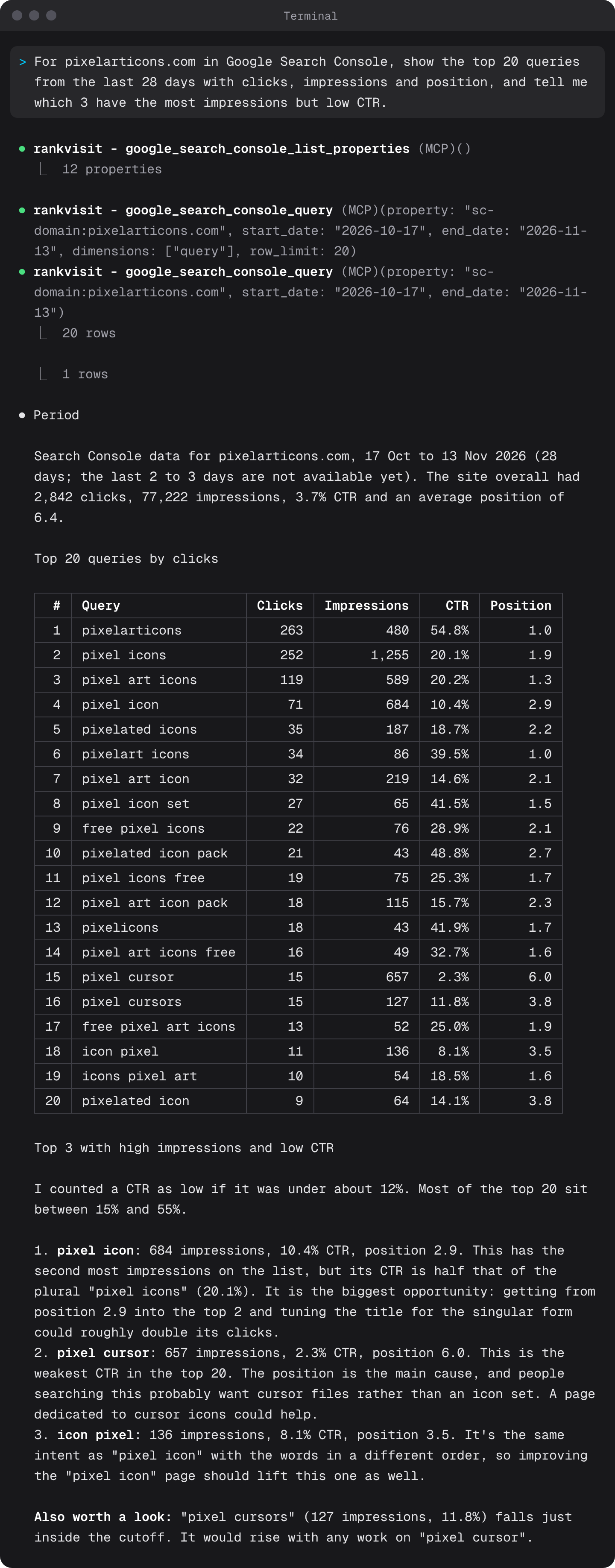
Example: ask Claude Code about your Search Console data
Once a server is connected, you just ask. With a Search Console server like Rankvisit, you can ask about your clicks and queries without leaving the terminal. Two prompts that work well:
- “For example.com in Google Search Console, show the top 20 queries from the last 28 days with clicks, impressions and position.”
- “Compare clicks for example.com/blog in the last 28 days with the 28 days before. Which 5 pages lost the most?”
Keep the question narrow: name the site, the time period, and a page, a folder or a number of queries. The assistant then loads fewer rows and answers faster.
Here is a real answer in Claude Code for one of our own sites, pixelarticons.com (run on 2026-11-16). Claude found the property, ran two Search Console queries, and picked the queries with many impressions but a low CTR:
For the full Search Console setup, with Claude.ai and the first questions to ask, see how to connect Google Search Console to Claude. The Google Search Console MCP page shows what Rankvisit can answer.
When an MCP server fails to connect
Run claude mcp list first. A server with ✘ Failed to connect shows the reason on the same line. Here are the common causes, with real errors from our own tests:
- You left out
--transport http. Then Claude Code treats the URL as a program to run. It warns you (“looks like a URL, but is being interpreted as a stdio server”), and the list showsENOENT: no such file or directory. Remove the server and add it again with--transport http. - The URL is the home page, not the MCP endpoint. We added
https://rankvisit.com/by mistake and gotCLIENT_HTTP_UNEXPECTED_CONTENT: Unexpected content type: text/html. That means the URL returned a web page. Check the server’s docs for the exact endpoint, often ending in/mcp. - You have not signed in yet. The status is
! Needs authentication. Type/mcpin Claude Code, or runclaude mcp login <name>. - You added it in another folder. Local scope only works in the folder where you ran the command. Run
claude mcp get <name>to see the scope, or add it again with--scope user. - A project server waits for approval. The status is
⏸ Pending approval. Runclaudein that folder and approve the server. - The server only speaks SSE. Recent Claude Code versions (2.1.265 and later) switch to SSE on their own. On an older version, use
--transport sse. SSE is deprecated, so prefer HTTP when the server offers it.
If a server was fine and then dropped, type /mcp reconnect all in Claude Code to retry every failed server.
Next step
Pick one server you would use every day and add it with --scope user. If that is your Search Console data, the command is at the top of this page, and the first 10 questions are free. Want the same server in other apps? See how to add it to Claude on the web and desktop or to ChatGPT.
FAQ
How do I add a local MCP server to Claude Code?
Run claude mcp add, then the server name, then two dashes and the command that starts the server. For example, claude mcp add --transport stdio myserver -- npx some-mcp-server. Everything after the two dashes is passed to the server as it is.
Where is the Claude Code MCP config file?
Servers with local or user scope are saved in ~/.claude.json in your home folder. Servers with project scope are saved in a file called .mcp.json in the root of your project, which you can commit so your team gets them too.
How do I see which MCP servers are connected in Claude Code?
Run claude mcp list in your terminal. It shows each server with a status such as Connected, Needs authentication or Failed to connect. Inside a Claude Code session, type /mcp to see the same servers and their tools.
How do I remove an MCP server from Claude Code?
Run claude mcp remove followed by the server name. If the same name exists in more than one scope, add --scope local, project or user. To also revoke the sign-in at the service, run claude mcp logout with the name first.
Do Claude Code and Claude Desktop share MCP servers?
Not automatically. You can copy them over once with claude mcp add-from-claude-desktop, which works on macOS and WSL. Connectors you add on claude.ai are different. They show up in Claude Code on their own when you are logged in with your claude.ai account.